Dock
A floating dock or a full-width bar with pinned and running apps, live window previews and widgets. It can replace the Windows taskbar.
WinLaunch adds a dock, a keyboard launcher, desktop fences and widgets, window zones and tiling, workspaces, live wallpapers and a phone remote to Windows 10 and 11. One app in the notification area; turn on only the parts you want.
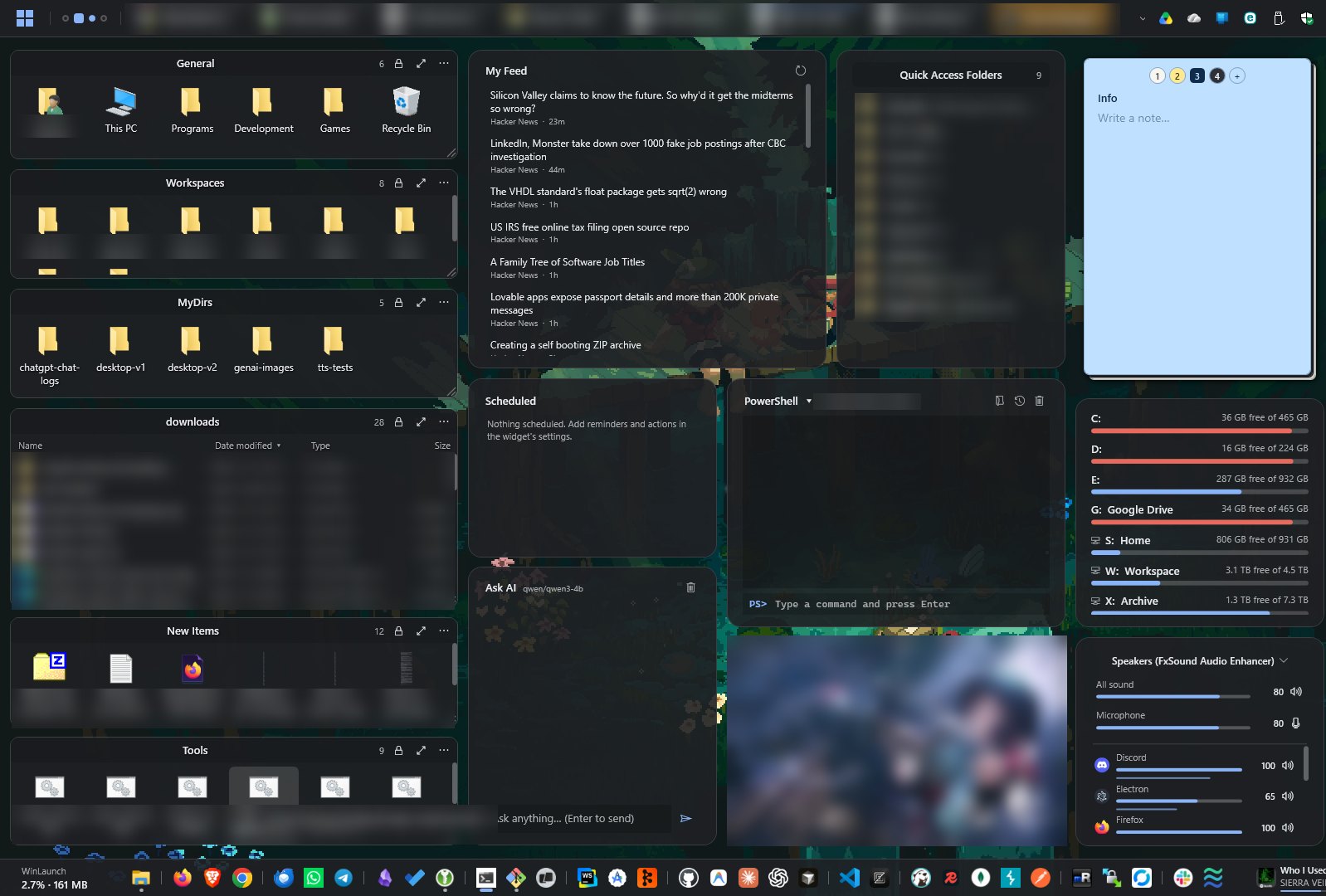
Each monitor gets its own dock or bar, its own widgets and its own wallpaper.
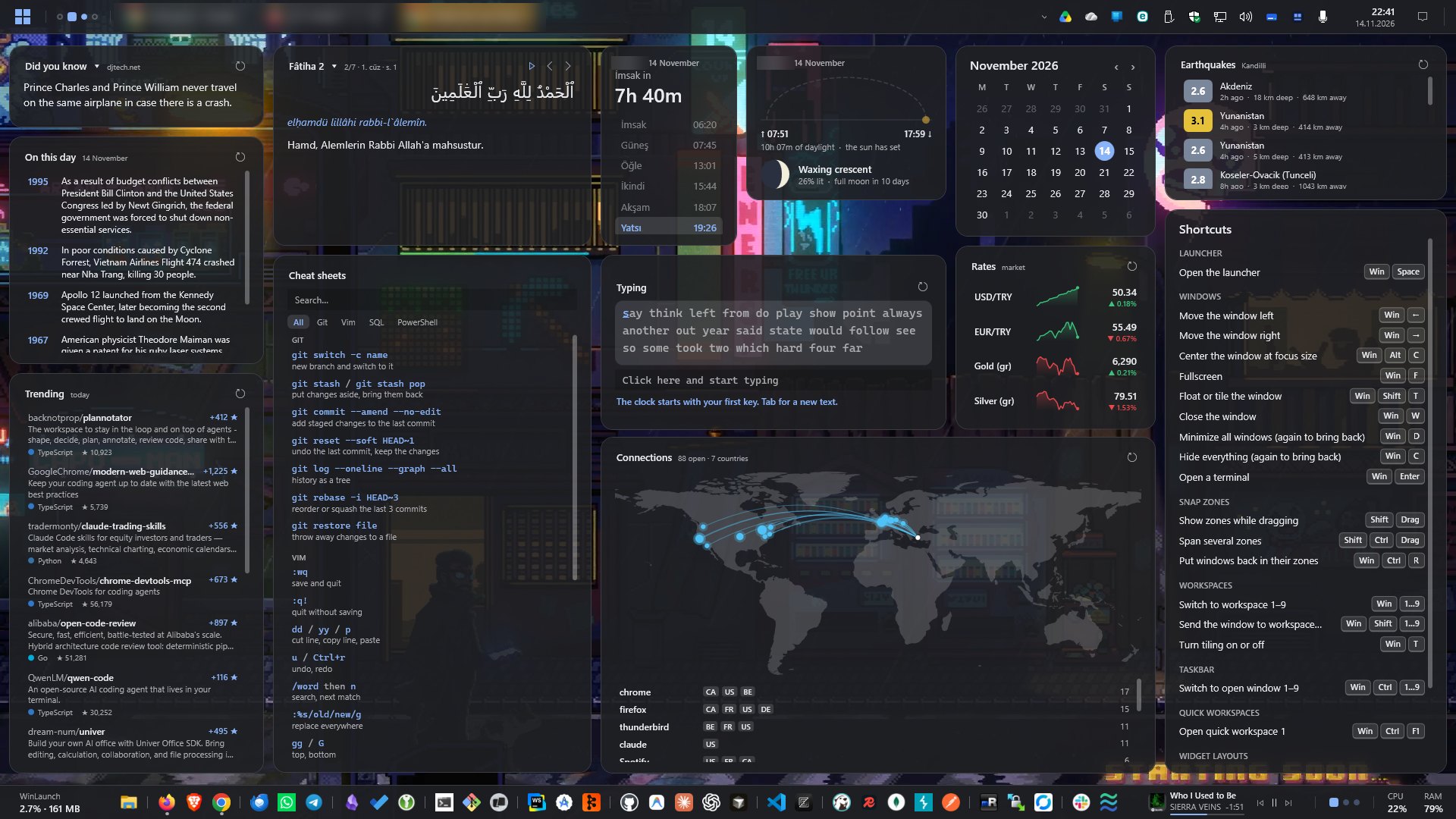
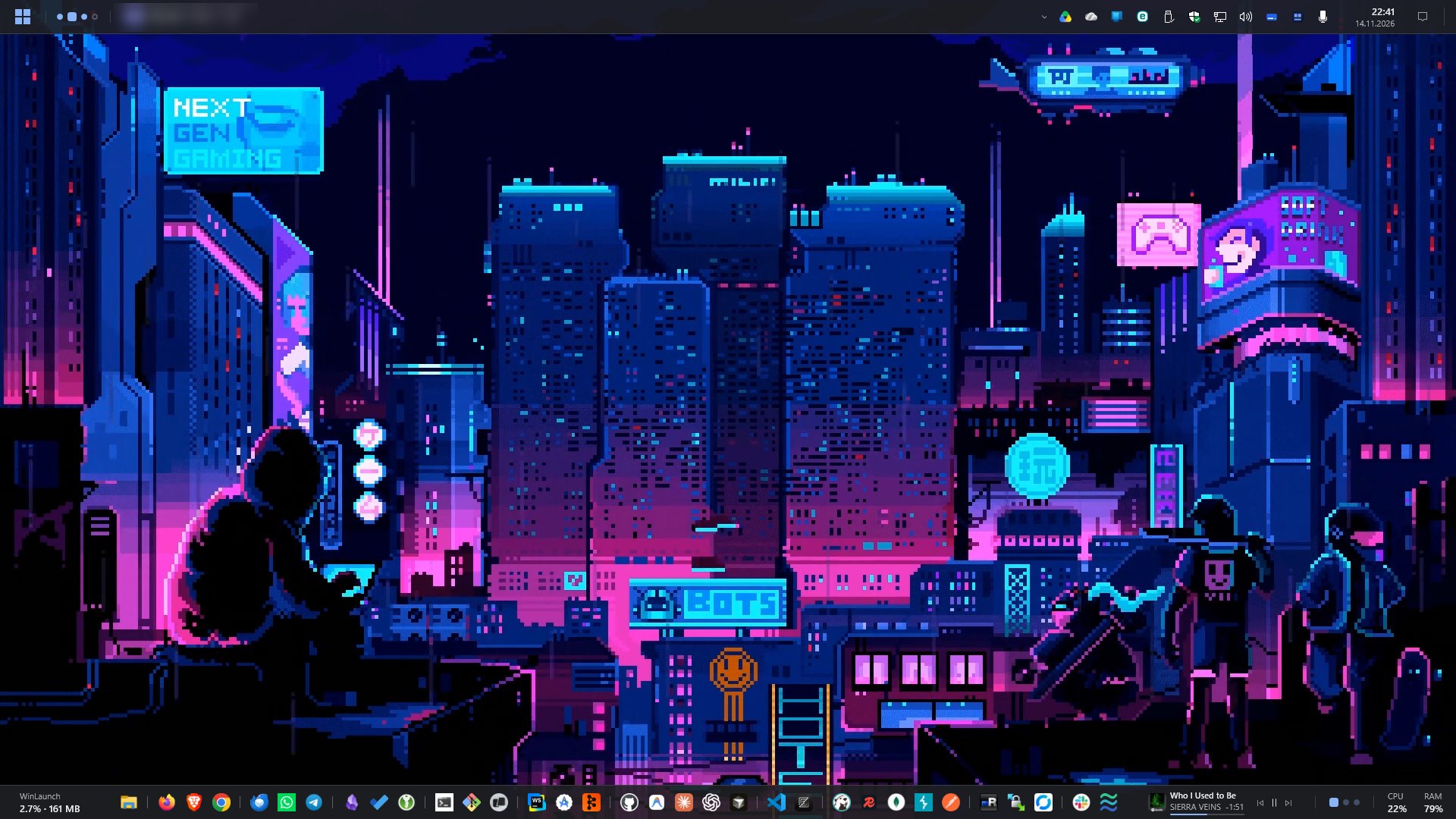
Ten parts, each with its own settings page. Turn any of them off and it is gone until you turn it back on.
A floating dock or a full-width bar with pinned and running apps, live window previews and widgets. It can replace the Windows taskbar.
Shortcut key + Space: find apps, files, settings and web searches, run commands and do quick math.
Group desktop icons into fences, show folders live on the desktop, and hide everything with a double-click.
Clocks, notes, folders, drives, system monitor, clipboard history and more, in layouts you switch between.
Move and resize windows from the keyboard, drag them into zones you draw, and put them back where they were.
Workspaces per monitor, switched with the shortcut key and a number, with optional automatic tiling.
Images per monitor, and video or GIF wallpapers that pause when an app covers the screen.
A key combination per app that opens it, or brings it forward when it is already open.
A WinLaunch right-click menu in File Explorer folders (hold Ctrl for the Windows one), with your own entries added and the ones you never use hidden, without patching Windows.
Use a phone or tablet on your Wi-Fi as a touch panel: media, volume, workspaces, shortcuts, commands and your widgets. Off until you pair a device.
Pick your shortcut key once (Win, Win + Alt, Ctrl + Alt, Alt or CapsLock as a hyper key); the rest follows. Every shortcut can be changed in Settings → Shortcuts.
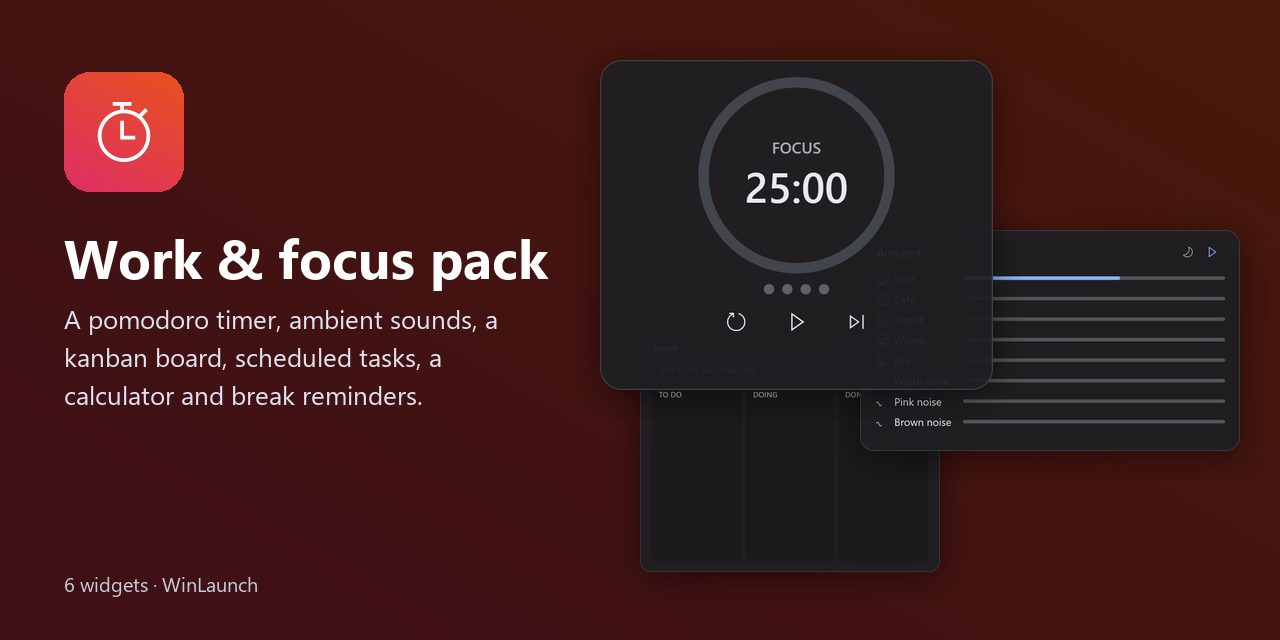
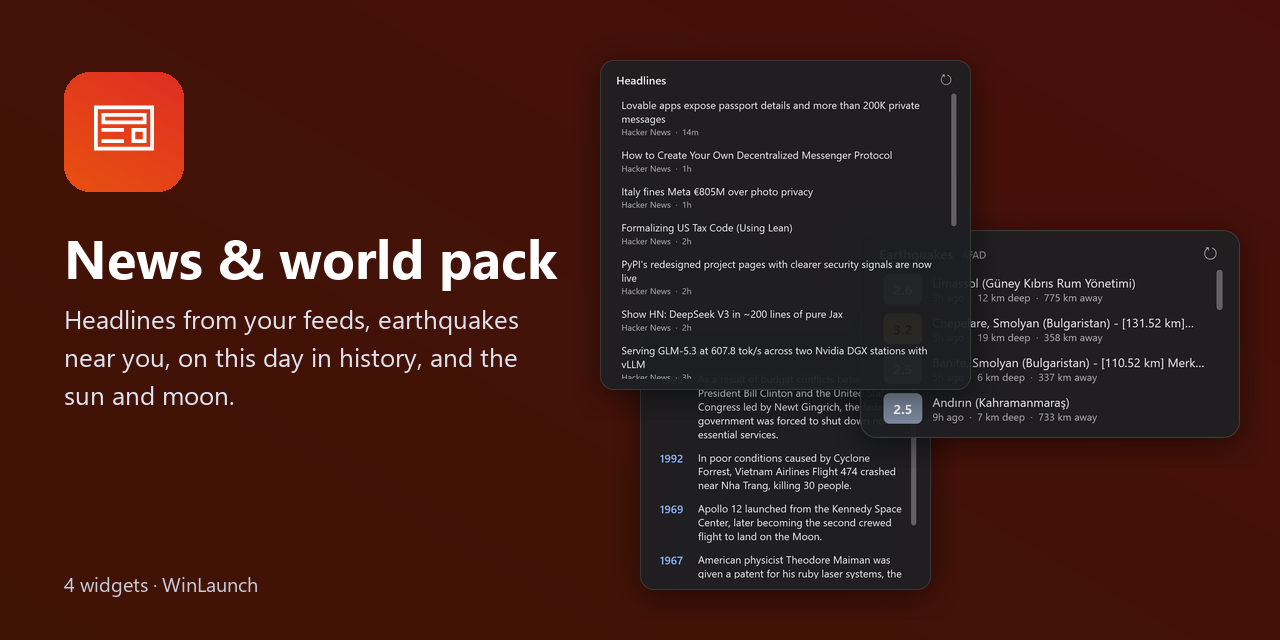
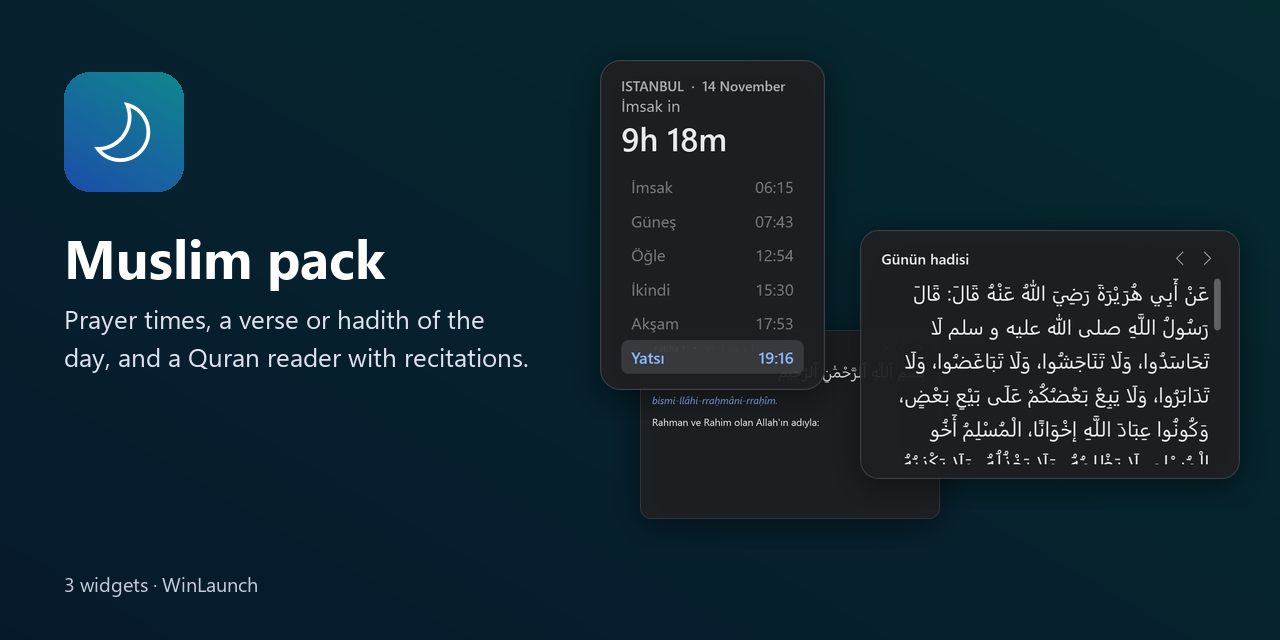
Eight packs of widgets come with every licence: developer tools, focus and work, media, network, news, learning, finance and a Muslim pack. A pack can also bring ready-made settings that you preview before applying, with an undo.
See the packs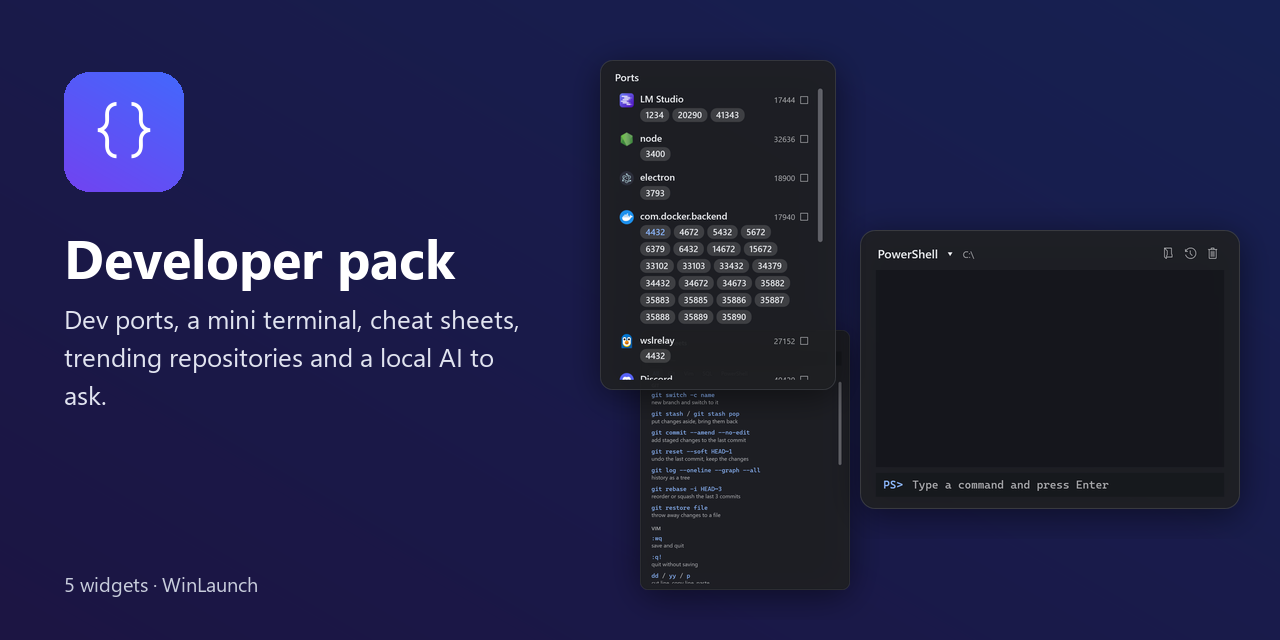
WinLaunch only goes online for updates, pack updates, licence renewals and widgets that show online data.
Every setting is a JSON file in your profile, with backup and restore built in.
No patching of Explorer or system files. Turn a part off, or uninstall, and Windows is as it was.
Requirements: Windows 10 or 11, 64-bit. Setup installs the .NET 9 Desktop Runtime when it is missing.